![logo-white.png]](https://knowledge.benq.com/hs-fs/hubfs/logo-white.png?width=50&height=50&name=logo-white.png)
Supported Models: CP5505, CP7505
[New Features]
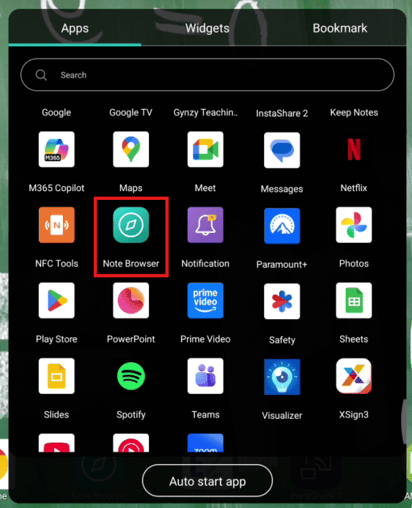
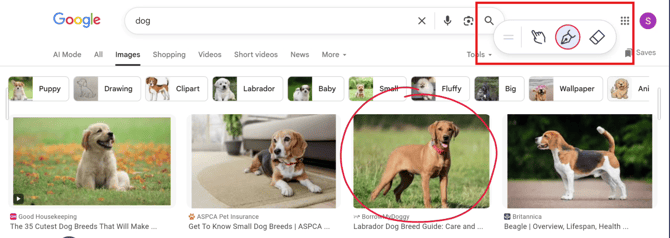
Note Browser
A new browser with built-in annotation features that keep notes anchored to the locations they were made on the webpage, even while scrolling. (NOTE: this is a separate browser and doesn't support Google Sync).
Access via:
Apps menu → Note Browser.
[Enhancements]
- Upgraded touch panel firmware to version 169.48.8, doubling the polling rate to 200 Hz for a smoother writing experience.
[Fixed Issues]
- Fixed an issue where the NFC sensor would not respond while the display was connected to another CP05 via USB-C output.
- Fixed an issue where the Floating Tool would crash when opened with a two-finger gesture.
- Fixed an issue with the CP5505 where the No signal message and OSD menu did not rotate to portrait when using an HDMI source.
- Fixed an issue where the initial setup (OOBE) could be interrupted by switching sources.
- Fixed an issue that caused certain apps to crash during device startup.
- Fixed an issue where the Eyecare feature would not take effect after a reboot.
[Updated Apps]
- Account Setting 2.1.34.0
- Launcher 1.6.35.0
- Sidebar 1.1.27.0
- BenQ App Store 3.0.15.0
- Instashare Button 1.1.10.0
- [New] Note Browser 1.0.2.0
[Update Instructions]
This update requires manual installation through DMS or on the BenQ Board.
Updating the firmware from DMS
⚠️ Warning
The firmware update restarts the devices automatically. Make sure to update the firmware during off hours.
- Go to https://dms.benq.com.
- Log in with your admin credentials.
- From the main menu, click Firmware. The list of available device models appears.
- Locate your BenQ Board model, and then click Update. The update summary appears.
- Review the update details, and then click Update.
Tip: You can also click Schedule to schedule the update at a later time.
Updating the firmware from the BenQ Board
⚠️ Warning
-
- The firmware update requires a system restart. Make sure to save all important data before proceeding.
- The update process may take a few minutes to complete. Ensure that there are no interruptions. Do not power off the device or disconnect from the internet to prevent permanent damage to the display.
- Open the Settings menu.
- Tap Advanced → System update.
- Tap Update system.
The system downloads and updates the firmware and then restarts automatically.