![logo-white.png]](https://knowledge.benq.com/hs-fs/hubfs/logo-white.png?width=50&height=50&name=logo-white.png)
[New Features]
Note Browser
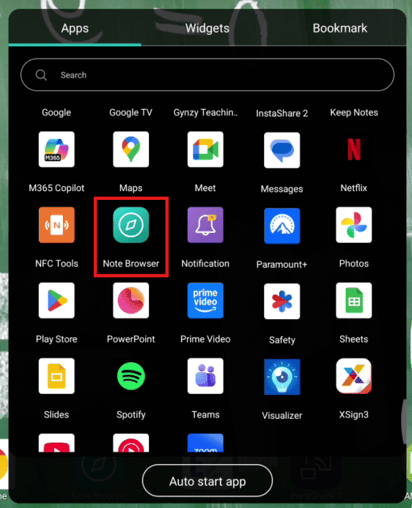
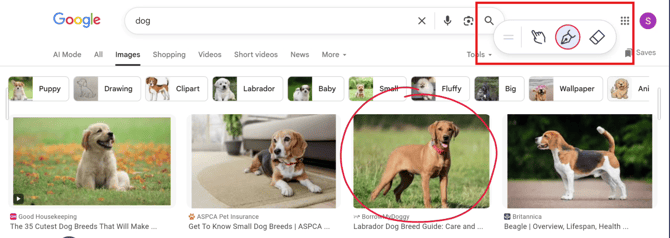
A new browser with built-in annotation features that keep notes anchored to the locations they were made on the webpage, even while scrolling. (NOTE: this is a separate browser and doesn't support Google Sync).
Access via:
Apps menu → Note Browser.
Audio equalizer
New audio equalizer settings have been added to customize sound profiles for different types of content. Access them via OSD menu → Audio → Equalizer settings.
[Enhancements]
- Optimized compatibility of the bottom-front USB-C port with USB drives.
- InstaShare Button now works in Corp mode.
- Optimized translations.
- Removed the default Android browser.
- [CM05] Removed the active pen user guide pop-up that appeared when taking the pen out of the dock.
- [CM05] Removed the “Active pen guide” setting from the OSD menu.
- Disabled Gesture functions when not logged into the board.
[Fixed Issues]
- Fixed an issue where the InstaShare Button had to reconnect to the connected device after switching from an HDMI source back to InstaShare Button mode.
- Fixed an issue where screen flickering occurred when using Circle to Artify Edge and SummarAI.
- Fixed an issue where the Hotspot would stay open instead of closing after using the InstaShare Button mode.
- Fixed an issue where SummarAI could not be launched with the active pen when logged into the board with an AMS account.
- Fixed an issue where an error message appeared when switching sources while using the Photos app.
[Updated Apps]
- MeetingRoom 1.0.9.0
- Launcher 1.6.42.0
- EZMath 1.3.1.0
- EZTools 1.5.1.0
- EZWrite 6 1.8.1.0
- [New][CM05] Notes Browser v1.0.2.0
[Update Instructions]
This update requires manual installation through DMS or on the BenQ Board.
Updating the firmware from DMS
⚠️ Warning
The firmware update restarts the devices automatically. Make sure to update the firmware during off hours.
- Go to https://dms.benq.com.
- Log in with your admin credentials.
- From the main menu, click Firmware. The list of available device models appears.
- Locate your BenQ Board model, and then click Update. The update summary appears.
- Review the update details, and then click Update.
Tip: You can also click Schedule to schedule the update at a later time.
Updating the firmware from the BenQ Board
⚠️ Warning
-
- The firmware update requires a system restart. Make sure to save all important data before proceeding.
- The update process may take a few minutes to complete. Ensure that there are no interruptions. Do not power off the device or disconnect from the internet to prevent permanent damage to the display.
- Open the Settings menu.
- Tap Advanced → System update.
- Tap Update system.
The system downloads and updates the firmware and then restarts automatically.