![logo-white.png]](https://knowledge.benq.com/hs-fs/hubfs/logo-white.png?width=50&height=50&name=logo-white.png)
DMS Web Version - 3.5.5.7
DMS Client (BenQ Board side) - 3.5.51.0
[New Features]
DMS support for WPS and WDC
IT Admins can now enroll BenQ Wireless Presentation systems (VS25 and WDC25 devices not supported yet with this update) into DMS. The status of these devices can now be viewed under Devices and the Rx Firmware can be updated via DMS.
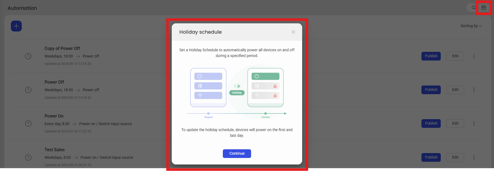
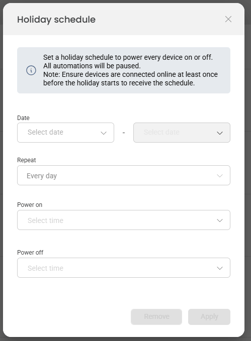
Holiday Mode for Power ON/OFF
IT admins can now temporarily disable all Automations for up to 180 days. During this time, the boards will still power ON/OFF (times are set within the Holiday Schedule) to allow updates to run, but the rest of the automations on the board will by disabled for the duration. NOTE: next iteration will plan to not require a Power ON during this period.
Added support for APK Bundles (.xapk [PureAPK] and .apkm [APKMirror])
IT Admins can now deploy APK bundles through DMS.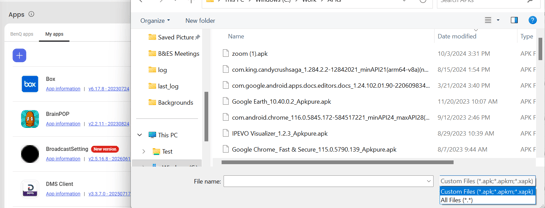
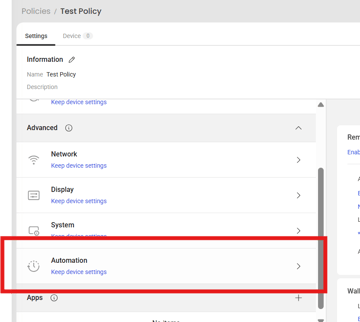
Automations now added to DMS Policies
DMS Policies are now able to include Automations to be deployed. Policy will overwrite device settings so any automations on the board will be replaced by ones set via Policy.
Added EDID Settings to DMS
IT Admins are now able to change EDID settings of a BenQ Board via individual device settings. Device > Detail info > Display and Volume > EDID.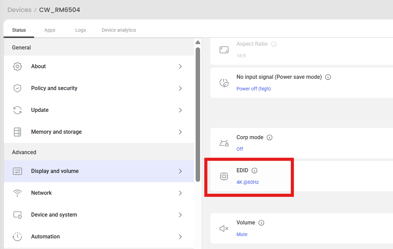
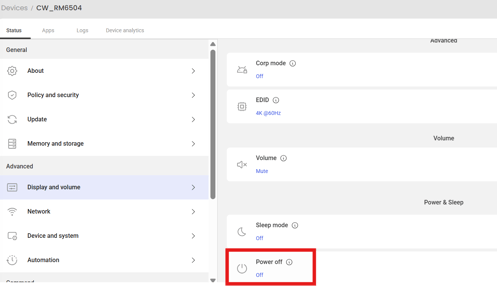
Added Power Off Mode setting to DMS (and Policies)
By default, BenQ Boards are set to power off after 4 hours of inactivity. This can now be adjusted via DMS.
-
Individual Device:
Device > Detail info > Display and volume > Power & sleep > Power off
-
Policy
Policy > Device > Power & sleep > Power off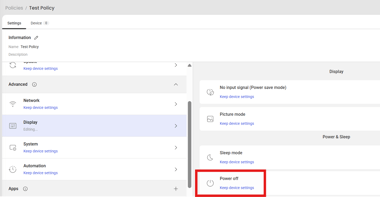
[Fixed Issues]
-
Fixed Kindle App not being displayed on BenQ App list.
- Added error code to note when FW OTA update was interrupted by QOTA application update.
- Fixed issue with RISE Vision DeviceID not being kept on reboot (RP04).
- Optimized translations.
[Update Instructions]
- This update requires installation through DMS or on the BenQ Board.
- Update DMS Client.
Method 1: Using DMS
-
-
- Go to https://dms.benq.com.
- Log in with your admin credentials.
- From the main menu, click Apps → BenQ Apps. The list of available apps appears.
- Locate DMS Client, then click Install. The app installation menu appears.
- Select the target devices (by devices, groups, or tags) and click Next.
- Select the specific devices, groups, or tags, and then click Select. A confirmation message appears.
- Review the information and click Confirm.
-
OR
Method 2: From the BenQ Board
-
-
- On the home screen taskbar, tap
 → BenQ App Store.
 - Tap
 → DMS Client.
 - The app details window appears.
- Tap Update.
Tip: If there are other available app updates, you can install them all by tapping then Update All.
- On the home screen taskbar, tap
-