![logo-white.png]](https://knowledge.benq.com/hs-fs/hubfs/logo-white.png?width=50&height=50&name=logo-white.png)
Supported Models:
EDLA models:
RP05 series – RP6505(V), RP7505(V), RP8605(V)
RM05 series – RM6505, RM7505, RM8605
RE05 series –RE6505(A/E/AC), RE7505 (A/E/AC), RE8605 (A/AC)
CP05 series – CP5505, CP7505
CM05 series – CM5505, CM7505
RP04 series – RP6504, RP7504, RP8604
RM04 series – RM6504, RM7504, RM8604
RE04 series – RE6504F(V), RE7504F(V), RE8604F(V)
RE04FV2 series – RE6504FV2, RE7504FV2, RE8604FV2, RE9804FV2
Non-EDLA model:
RM03 series – RM6503, RM7503, RM8603
RP03 series – RP6503, RP7503, RP8603
RE03 series – RE6503, RE7503, RE8603, RE9803
EZWrite 6 lite
RP02 series - RP6502, RP7502, RP8602
RE01 series – RE6501, RE7501, RE8601, RE9801
RM02K series - RM5502K, RM6502K, RM7502K, RM8602K
[New Features]
Shape recognition for straight lines
EZWrite 6 can now automatically convert a hand-drawn line into a straight line object. While drawing a straight line, hold your finger on the screen for 1.5 seconds to convert it (DON'T RELEASE AFTER DRAWING UNTIL IT CONVERTS) .
H5P file support
Users can now import and open offline H5P content in EZWrite 6. H5P content is available in offline mode only. Playback compatibility may vary depending on the H5P content type and libraries used in the file. Some H5P content may not display or function correctly on Android. To import H5P files on Android, update AMS Files to version 3.0.13.0 or later.
For more information about H5P, visit the H5P website.
https://h5p.org/
Spinner enhancements
-
The Spinner tool now supports up to 50 items.
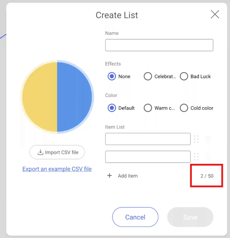
-
Users can also hide a selected item so that it will not be selected again in subsequent rounds.
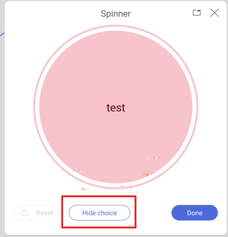
2D object angle
EZWrite 6 can now display the angles of supported 2D polygon objects.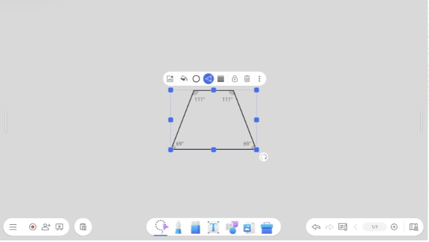
Google Slides search
A new search tool is now available when adding Google Slides files to EZWrite 6.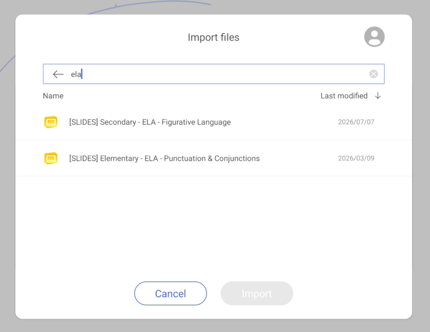
Ruler in Floating Tool
The ruler is now available from Floating Tool → Toolbox.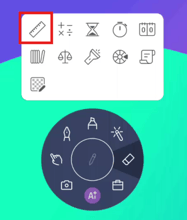
Armenian handwriting recognition
EZWrite 6 now supports Armenian handwriting recognition.
Palm rejection and palm eraser support (Added to CP05)
EZWrite 6 now supports palm rejection and palm eraser on CP05 series BenQ Boards.
Australian education fonts
The following Australian school fonts are now available in EZWrite 6 for Android:
-
Edu QLD BeginnerE
-
Edu SA Beginner
-
Edu VIC WA NT Beginner
-
Edu QLD Hand
[Enhancements]
-
Several user interface elements have been optimized.
-
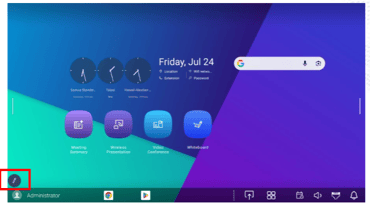
The default position of the Floating Tool has been moved lower and aligned with the left edge of the screen to reduce obstruction of onscreen content.
-
Optimized the portrait mode layout on CP5505.
[Fixed Issues]
-
Fixed an issue where a brief display glitch occurred at the two-second mark when the timer was set to more than 10 seconds.
-
(CP05) Fixed an issue where EZWrite 6 crashed when the Page Up or Page Down button on the active pen was pressed while drawing.
-
Fixed an issue where the Floating Tool could not be dragged while remotely controlling the BenQ Board using remote desktop software.
-
Fixed an issue where images captured with the Floating Tool could appear stretched or distorted.
-
Fixed an issue where the Floating Tool did not appear correctly after user login or crashed under certain circumstances.
[Update Instructions]
This update requires manual installation through DMS or on the BenQ Board (If auto-update hasn't been enabled through DMS Policy).
Updating EZWrite 6 from DMS
1. Go to https://dms.benq.com.
2. Log in with your admin credentials.
3. From the main menu, click Apps → BenQ Apps. The list of available apps appears.
4. Locate EZWrite 6, and then click Install. The app installation menu appears.
5. Select to install by devices, groups, or tags, and then click Next.
6. Select the specific devices, groups, or tags, and then click Select. A confirmation message appears.
7. Review the information, and then click Confirm.
Updating EZWrite 6 from the BenQ Board
For EDLA boards (04 series and later):
1. On the home screen taskbar, tap  → BenQ App Store.
2. Tap  → EZWrite 6. The app details window appears.
3. Tap Update.
For non-EDLA boards:
1. Open the EZWrite 6 app.
2. Tap  .
.
3. Tap → Check for updates. The update details window appears.
4. Tap Yes.
Tip: If there are other available app updates, you can install them simultaneously. Tap  then Update All.