![logo-white.png]](https://knowledge.benq.com/hs-fs/hubfs/logo-white.png?width=50&height=50&name=logo-white.png)
Supported Models:
EDLA model:
RP05 series – RP6505(V), RP7505(V), RP8605(V)
RM05 series – RM6505, RM7505, RM8605
RE05 series –RE6505(A/E/AC), RE7505 (A/E/AC), RE8605 (A/E/AC)
CP05 series – CP5505, CP7505
CM05 series – CM5505, CM7505
RP04 series – RP6504, RP7504, RP8604
RM04 series – RM6504, RM7504, RM8604
RE04 series – RE6504F(V), RE7504F(V), RE8604F(V)
RE04FV2 series – RE6504FV2, RE7504FV2, RE8604FV2, RE9804FV2
EZWrite 6 lite (Non-EDLA)
RP02 series - RP6502, RP7502, RP8602
RE01 series – RE6501, RE7501, RE8601, RE9801
RM02S series – RM6502S, RM7502S, RM8602S
RM02K series - RM5502K, RM6502K, RM7502K, RM8602K
[New Feature]
Default Pen
User can now set default Pen Settings (Thickness and Color). Default Pen Setting under EZWrite Settings.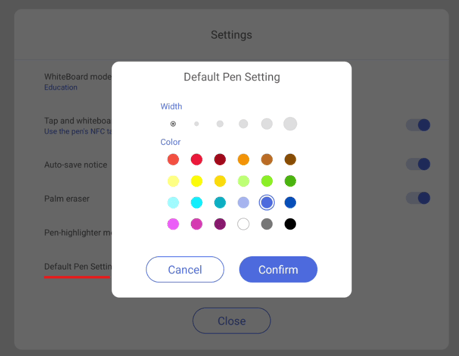
Default Font
User can now set a default Font for text items. Default Font under EZWrite Settings.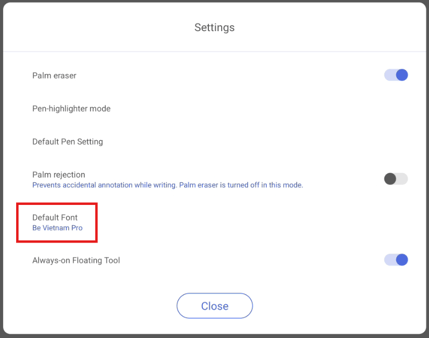
Lock Canvas
Users can now lock the Canvas to prevent dragging.
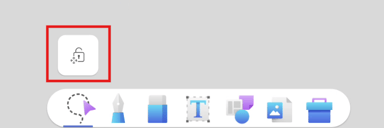
Customized Palm Eraser
Users can now adjust their Palm Eraser size by double tapping the Palm Eraser icon.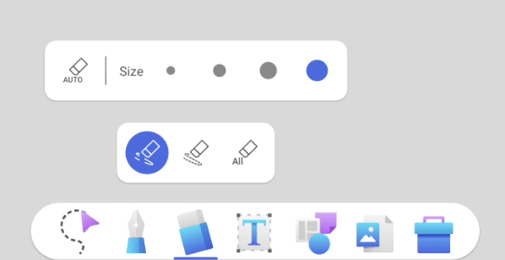
[Enhancements]
- Accessibility enhancements to comply with WCAG 2.2 AA Level.
- EZMath now has option to hide answer.
- Camera function now has "Flip" function.
- Team Posts now supports serparate backgrounds.
[Fixed Issues]
- Fixed issued involving accidental interruption during Circle to Artify.
[Update Instructions]
This update requires manual installation through DMS or on the BenQ Board.
Updating EZWrite 6 from DMS
1. Go to https://dms.benq.com.
2. Log in with your admin credentials.
3. From the main menu, click Apps → BenQ Apps. The list of available apps appears.
4. Locate EZWrite 6, and then click Install. The app installation menu appears.
5. Select to install by devices, groups, or tags, and then click Next.
6. Select the specific devices, groups, or tags, and then click Select. A confirmation message appears.
7. Review the information, and then click Confirm.
Updating EZWrite 6 from the BenQ Board
For EDLA boards (04 series and later):
1. On the home screen taskbar, tap  → BenQ App Store.
2. Tap  → EZWrite 6. The app details window appears.
3. Tap Update.
For non-EDLA boards:
1. Open the EZWrite 6 app.
2. Tap  .
3. Tap → Check for updates. The update details window appears.
4. Tap Yes.
Tip: If there are other available app updates, you can install them simultaneously. Tap  then Update All.