![logo-white.png]](https://knowledge.benq.com/hs-fs/hubfs/logo-white.png?width=50&height=50&name=logo-white.png)
[New Features]
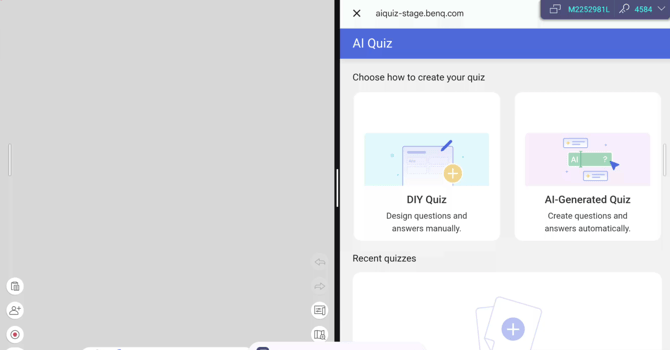
AI Quiz
Users can now create online quizzes in EZWrite by entering a topic, number of questions, and difficulty. Quizzes can be created either manually or generate via AI. (Note: As with all AI generated material, please CHECK the accuracy of the generated data.)
Access AI Quiz from Toolbox →  .
.
Limit: 20 uses per day.
Rich Text Format support
EZWrite 6 can now recognize Rich Text Format (RTF) when importing EZWrite files, allowing different styles, fonts, highlights, bullet points, and hyperlinks within the same text box. EZWrite 6 on BenQ Board is READ ONLY for RTF.
Windows/MAC/iOS/Web can EDIT. Below screenshot is from Windows version.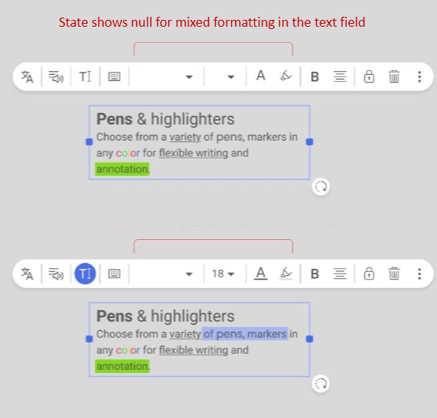
Toolbox customization
Users can now customize the toolbox by adding or removing tools for easier access. Go to Toolbox → → Edit toolbox, then select the tools you want and tap Save.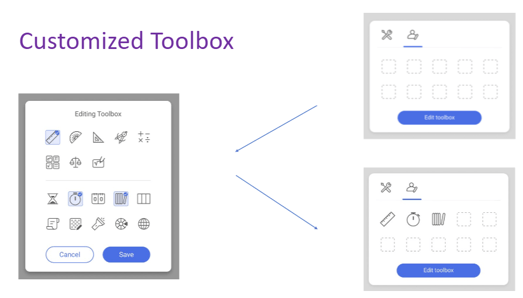
Whiteboard modes
Users can now switch between Corporate and Education modes, each offering a tailored feature set. To switch mode, go to Settings → General → Whiteboard mode.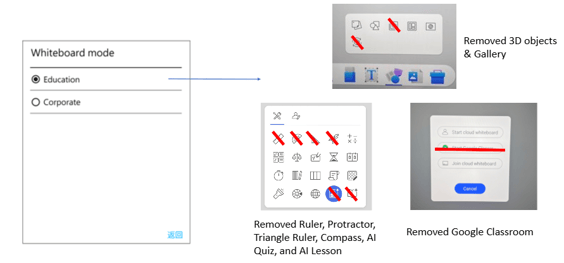
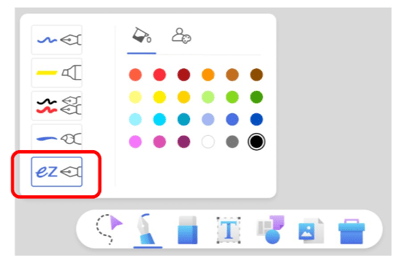
Auto handwriting recognition
A new pen mode automatically converts your handwriting into text as you write. To enable this mode, tap Pen →  .
.
[Enhancements]
- When the device is enrolled in DMS, update notifications (red dot in the Settings menu) are disabled by default.
[Fixed Issues]
- Fixed an issue where tapping the NFC pen on the NFC sensor did not launch EZWrite 6 when the BenQ Board was in Authentication mode.
- Fixed an issue where slides could not be changed with the remote control during a presentation when the Floating Tool was open.
- Fixed an issue where the raise hand status did not sync correctly during cloud whiteboarding sessions.
- Fixed an issue where split screen mode would not display correctly.
[Update Instructions]
This update requires manual installation through DMS or on the BenQ Board.
Updating EZWrite 6 from DMS
1. Go to https://dms.benq.com.
2. Log in with your admin credentials.
3. From the main menu, click Apps → BenQ Apps. The list of available apps appears.
4. Locate EZWrite 6, and then click Install. The app installation menu appears.
5. Select to install by devices, groups, or tags, and then click Next.
6. Select the specific devices, groups, or tags, and then click Select. A confirmation message appears.
7. Review the information, and then click Confirm.
Updating EZWrite 6 from the BenQ Board
For EDLA boards (04 series and later):
1. On the home screen taskbar, tap  → BenQ App Store.
2. Tap  → EZWrite 6. The app details window appears.
3. Tap Update.
For non-EDLA boards:
1. Open the EZWrite 6 app.
2. Tap  .
.
3. Tap → Check for updates. The update details window appears.
4. Tap Yes.
Tip: If there are other available app updates, you can install them simultaneously. Tap  then Update All.