![logo-white.png]](https://knowledge.benq.com/hs-fs/hubfs/logo-white.png?width=50&height=50&name=logo-white.png)
Issue: When trying to enable Mic/Camera permissions for a website, I can't select microphone, or am getting this message?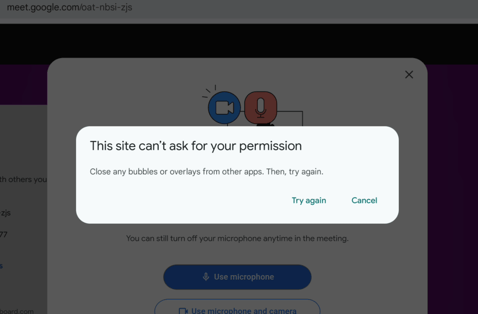
Solution: If you've already allowed permissions for the Chrome application to access the Microphone and Camera via Application permissions, then you'll need to allow it for site settings as well. The applications that have bubble/overlays are being blocked by Android Security.
The steps below need to be done for each site that require Mic/Camera (Chrome just needs to be done once).
Allow permissions for Chrome application:
Option 1:
- From Sidebar menu, put Chrome into Multi window mode.
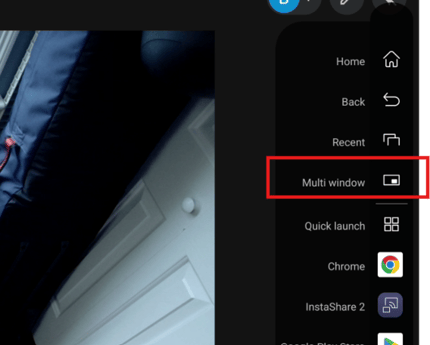
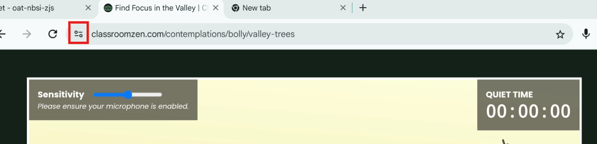
- Once in Multi window, now you're able to enable Microphone and Camera permissions for your website. If not already prompted, tap the
 icon nextto the search bar.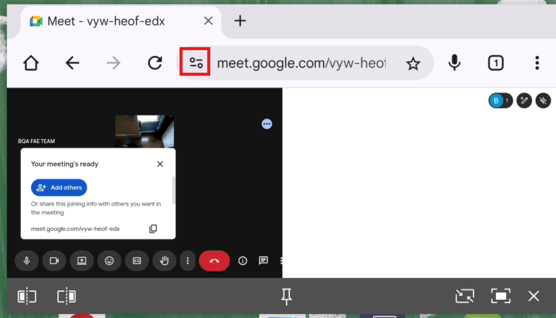
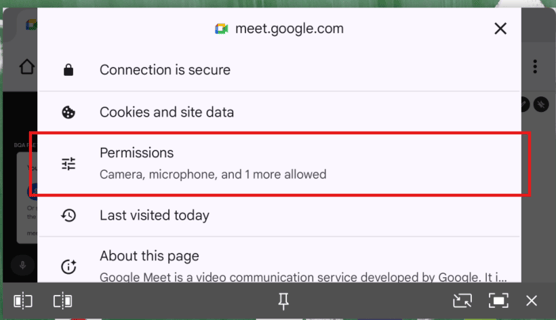
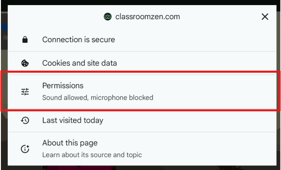
- Now you can enable Microphone and Camera permissions by tapping into the Permissions menu.
Option 2:
- Press the Settings button on the front keypad of your BenQ Board (in between the Back and Volume Down button. Should see menu below:
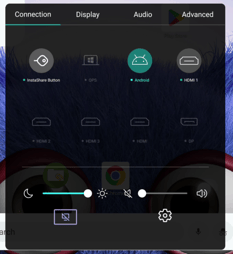
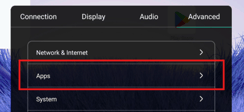
- Navigate to Advanced > Apps.
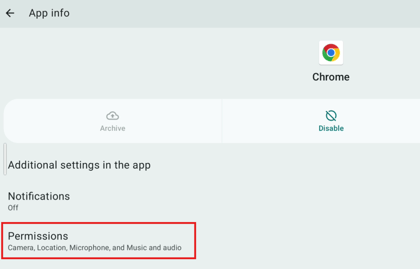
- Go to Chrome and confirm you have Camera and Microphone permissions allowed.
- Disable the Sidebar Menu and Always-On Floating Tool.
- Disabling Sidebar Menu:
- Press the Settings button on the front of your BenQ Panel to open the BenQ OSD Menu again.
- Navigate to Advanced, scroll down and toggle OFF System Toolbar.
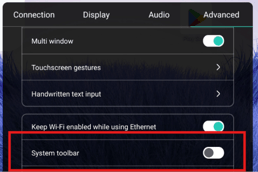
- Press the Settings button on the front of your BenQ Panel to open the BenQ OSD Menu again.
- Disable Always-on Floating Tool
- Open EZWrite and go to the Settings. Scroll down and toggle OFF Always-on Floating Tool.
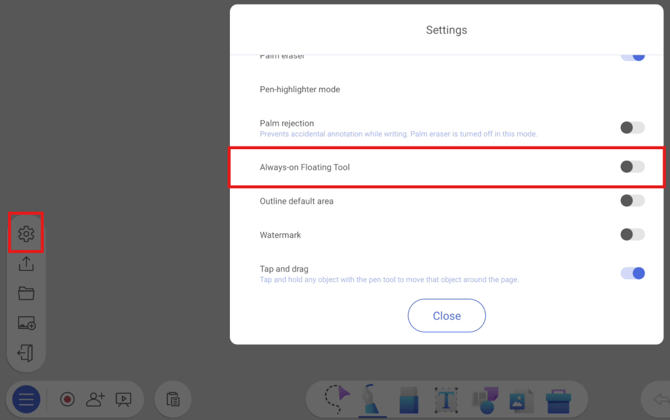
- Open EZWrite and go to the Settings. Scroll down and toggle OFF Always-on Floating Tool.
- Disabling Sidebar Menu:
- Go back to the Chrome browser site where you need Mic/Camera permissions and click on the icon shown below.
- Enable Microphone/Camera permissions required by tapping into the Permissions and enabling.
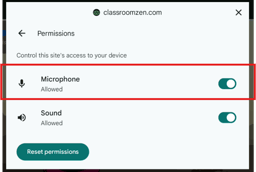
- The site should now be able to access the Microphone/Camera. NOTE: Remember to re-enable Sidebar Menu and Always-on Floating tool if needed.