![logo-white.png]](https://knowledge.benq.com/hs-fs/hubfs/logo-white.png?width=50&height=50&name=logo-white.png)
[New Features]
Bring your own meeting (BYOM) - Windows Devices (1.9.5.0+ Client Version) / Mac Client (1.9.6.0+ Client Version)
Users are able to now access the camera/micorphones of their BenQ Board directly from their laptop for video conferencing.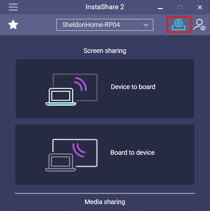
Once enabled, devices can now be selected through conferencing apps under Instashare 2 Camera/Microphone.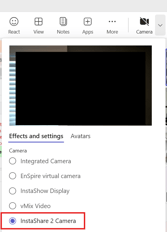
Touchback for Android/iOS Devices
Users are now able to control their Android and iOS Devices from their BenQ Board.
- iOS instructions can be found HERE.
- Android instructions can be found HERE.
Quick-connect QR Code
Users with the Instashare 2 Application on their devices can now scan a QR Code to instantly connect to the BenQ Board. Casting device will join the network through Instashare 2 (BenQ Board must be connected to Wi-Fi), allowing it connect to the board.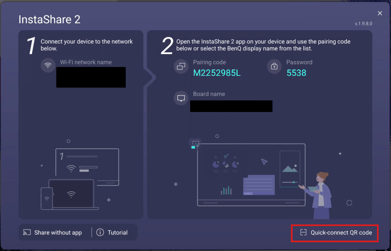
[Enhancements]
-
After entering the pairing code on the connection screen, pressing Enter now connects your device to the display.
-
Added support for landscape on iPad and Android tablets.
-
When extending a screen from a device with a different aspect ratio than the display’s, the extended display now uses the display’s native aspect ratio rather than the device’s, eliminating black bars.
-
Removed the pop-up notification shown at launch after settings were changed remotely via DMS.
-
Improved Windows client compatibility with ARM-based devices.
-
Miracast will now use the BenQ display’ name under available devices.
-
Added an End User License Agreement (EULA) and Privacy Policy agreement page when launching InstaShare2 for the first time.
-
Optimized AirPlay search reliability in IPv4/IPv6 networks and dual-network setups (Hotspot + LAN enabled).
[Update Instructions]
This update requires manual installation.
Updating Windows Instashare 2 Client application.
- Download from InstaShare 2 website HERE.
Updating InstaShare 2 Host from DMS
- Go to https://dms.benq.com.
- Log in with your admin credentials.
- From the main menu, click Apps → BenQ Apps. The list of available apps appears.
- Locate InstaShare 2 (or Instashare 2 EDLA for 04 Series and up), and then click Install. The app installation menu appears.
- Select to install by devices, groups, or tags, and then click Next.
- Select the specific devices, groups, or tags, and then click Select. A confirmation message appears.
- Review the information, and then click Confirm.
Updating InstaShare 2 from the BenQ Board
- On the home screen taskbar, tap
 → BenQ App Store.
 - Tap
 → InstaShare 2. The app details window appears.
 - Tap Update.
Tip: If there are other available app updates, you can install them simultaneously. - Tap
 then Update All.