![logo-white.png]](https://knowledge.benq.com/hs-fs/hubfs/logo-white.png?width=50&height=50&name=logo-white.png)
Supported models: CP05, CM05, RP05, RM05, RE05A, RP04, RM04, RE04, RE04FV2, RP03, RP03v1, RM03, RE03, RP02, RM02K, CP01K, CS01, SL04, SH04, and ST04.
Client Versions: 1.11.0.0 (Android, Windows, Mac, iOS, Chrome, Web)
[New Features]
Shareable Apps
Users can now create a list of shareable apps to limit which apps will be shown on InstaShare 2. Apps not on the list will not be shared when sharing your entire screen.
You can enable this feature after tapping Device to Board, then enabling the feature in the bottom-right corner of the window. Tap on Shareable Apps list, then tap Add to edit the list of shareable apps.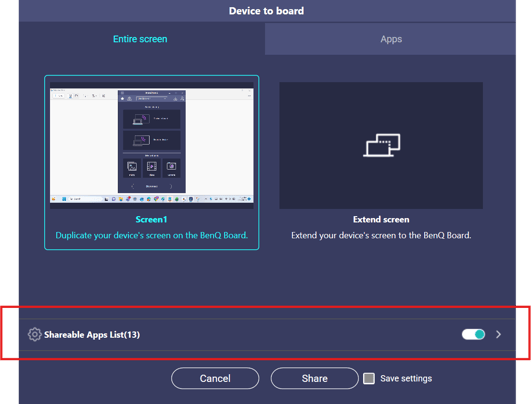
Sharing preferences
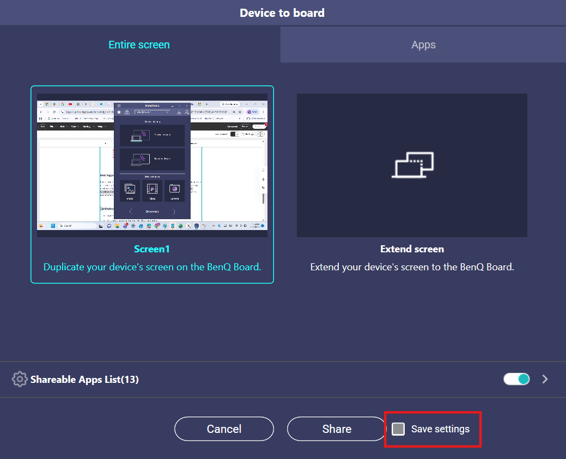
Users can now save their sharing preferences, such as sharing or extending their screen or sharing a specific app. To do so, tap Device to Board, select your preferred sharing method, then tap the Save settings checkmark in the bottom-right corner of the window. The next time you tap Device to Board, your screen will be shared using the saved sharing method.
[Enhancements]
- Optimized network testing.
- Added encryption for the File Sharing feature.
- [iOS] Optimized touchback when using the InstaShare 2 client app.
- [RM04] Optimized audio performance and DV01K compatibility.
[Fixed issues]
- Fixed an issue where using Google Cast to share your screen would result in a black screen.
[Update Instructions]
This update requires manual installation.
Updating Windows Instashare 2 Client application.
- Download from InstaShare 2 website HERE.
Updating InstaShare 2 Host from DMS
- Go to https://dms.benq.com.
- Log in with your admin credentials.
- From the main menu, click Apps → BenQ Apps. The list of available apps appears.
- Locate InstaShare 2 (or Instashare 2 EDLA for 04 Series and up), and then click Install. The app installation menu appears.
- Select to install by devices, groups, or tags, and then click Next.
- Select the specific devices, groups, or tags, and then click Select. A confirmation message appears.
- Review the information, and then click Confirm.
Updating InstaShare 2 from the BenQ Board
- On the home screen taskbar, tap
 → BenQ App Store.
 - Tap
 → InstaShare 2. The app details window appears.
 - Tap Update.
Tip: If there are other available app updates, you can install them simultaneously. - Tap
 then Update All.