![logo-white.png]](https://knowledge.benq.com/hs-fs/hubfs/logo-white.png?width=50&height=50&name=logo-white.png)
Applicable Models: RE6505A, RE7505A, RE8605A
[New Features]
For more information on AI items Lasso Search to Camera Gestures, please see EZWrite6 Release Notes HERE.
Lasso Search
Circle anything on the screen and instantly receive curated, relevant information.
Access it via:
- Sidebar Menu →
 →
→ 
- Floating Tool →
 →
→ 
Ask AI
A chat-style teaching assistant that provides clear explanations, examples, and solutions to different learning needs.
Access via:
- Sidebar Menu → →

- Floating Tool → →

- Lasso Search Window →

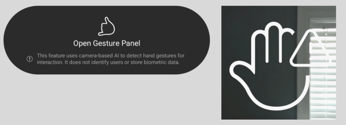
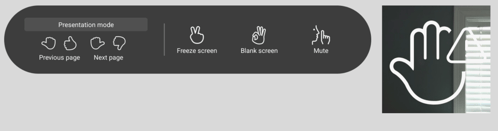
Camera Gestures
Control the BenQ Board with hand gestures from anywhere in the classroom.
Enable via:
- Sidebar Menu → →

- Floating Tool → →

On-screen instructions will appear after the feature is enabled.
[Enhancements]
- Added support for the following languages: Croatian, Norwegian, Finnish, and Slovak.
- Added support for recording system audio in addition to microphone audio when using the recording feature in EZWrite 6 and the Floating Tool.
[Fixed Issues]
- Fixed an issue where the Freeze function would not work when a MacBook was connected via USB-C or HDMI.
- Fixed an issue where the Picture-in-Picture mode (tapping the Home button while inside an app) was unavailable for YouTube.
- Fixed an issue where YouTube videos pushed via X-Sign Broadcast would not play correctly.
- Fixed an issue where the camera function in EZWrite 6 would only detect one camera when two cameras were connected to the board.
- Fixed an issue that could cause a black screen, green screen, or system restart when switching input sources or connecting and disconnecting source cables.
- Fixed an issue where connecting a laptop via USB-C could display a blank screen while touch functionality remained active or cause a system restart.
- Fixed an issue that could cause a system crash when switching input sources.
[Updated Apps]
- Account Settings 2.1.35.0
- Launcher 1.6.49.0
- IFPSidebar 1.1.30.0
- IFPWidget 1.3.11.0
- BenQ System Updates 2.3.18.0
- EZWrite 6 1.8.4.0
- EZTools 1.5.1.0
- EZMath 1.3.3.0
- BroadcastSetting 2.5.23.0
- DMS Remote Desktop 1.0.1.0
- InstaShare Button 1.1.12.0
- Note Browser 1.0.2.0
- BenQ Control 1.0.4.0
- AI Service 1.1.16.0
[Update Instructions]
This update requires manual installation through DMS or on the BenQ Board.
Updating the firmware from DMS
⚠️ Warning
The firmware update restarts the devices automatically. Make sure to update the firmware during off hours.
- Go to https://dms.benq.com.
- Log in with your admin credentials.
- From the main menu, click Firmware. The list of available device models appears.
- Locate your BenQ Board model, and then click Update. The update summary appears.
- Review the update details, and then click Update.
Tip: You can also click Schedule to schedule the update at a later time.
Updating the firmware from the BenQ Board
⚠️ Warning
-
- The firmware update requires a system restart. Make sure to save all important data before proceeding.
- The update process may take a few minutes to complete. Ensure that there are no interruptions. Do not power off the device or disconnect from the internet to prevent permanent damage to the display.
- Open the Settings menu.
- Tap Advanced → System update.
- Tap Update system.
The system downloads and updates the firmware and then restarts automatically.