![logo-white.png]](https://knowledge.benq.com/hs-fs/hubfs/logo-white.png?width=50&height=50&name=logo-white.png)
[New Features]
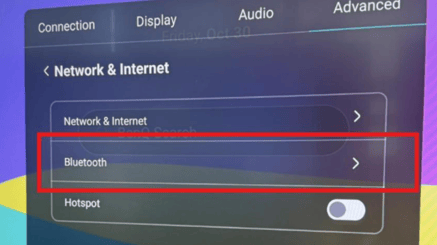
Bluetooth Toggle
Introduced a Bluetooth toggle under OSD > Advanced > Network & Internet.
[Enhancements]
-
Improved activation time of the Freeze function.
-
Improved touchscreen gesture support so gestures remain available when logged out of an AMS account.
-
Improved language support by adding Mongolian and refining other language translations.
-
Improved the default startup configuration by setting OSD > Advanced > Startup Settings > Source Wake Up to Off.
-
Improved network-sharing defaults by setting Admin Menu > System Settings > Ethernet Sharing to Off. This prevents the IFP’s network connection from being shared when a Type-C or touch cable is connected.
-
Improved Cinema Mode audio effects.
- Updated Android Security Patch to 9/1/2026.
[Updated Apps]
-
Updated Account Settings to v2.1.42.0
-
Updated Launcher to v1.6.85.0
-
Updated IFPSidebar to v1.1.38.0
-
Updated IFPWidget to v1.3.19.0
-
Updated Meeting to v1.0.19.0
-
Updated EZWrite to v1.9.2.0
-
Updated EZTools to v1.6.4.0
-
Updated EZMath to v1.3.4.0
-
Updated AMS Files to v3.1.2.1
-
Updated AMS Office to v1.0.13.0
-
Updated DMS Client to v3.5.80.0
-
Updated Easy Setting to v1.0.22.0
-
Updated InstaShare 2 Button to v1.1.13.0
-
Updated AIService to v1.2.4.0
[Fixed Issues]
-
Fixed an intermittent issue that caused recordings to have no audio after startup.
-
Fixed an issue that prevented EZWrite from opening Chrome in split-screen mode.
-
Fixed an issue that prevented the camera from being enabled during VooV Meetings.
-
Fixed an issue where the OPS read the EDID incorrectly at startup, causing the IFP model name to be displayed incorrectly.
[Update Instructions]
This update requires manual installation through DMS or on the BenQ Board.
Updating the firmware from DMS
⚠️ Warning
The firmware update restarts the devices automatically. Make sure to update the firmware during off hours.
- Go to https://dms.benq.com.
- Log in with your admin credentials.
- From the main menu, click Firmware. The list of available device models appears.
- Locate your BenQ Board model, and then click Update. The update summary appears.
- Review the update details, and then click Update.
Tip: You can also click Schedule to schedule the update at a later time.
Updating the firmware from the BenQ Board
⚠️ Warning
-
- The firmware update requires a system restart. Make sure to save all important data before proceeding.
- The update process may take a few minutes to complete. Ensure that there are no interruptions. Do not power off the device or disconnect from the internet to prevent permanent damage to the display.
- Open the Settings menu.
- Tap Advanced → System update.
- Tap Update system.
The system downloads and updates the firmware and then restarts automatically.