![logo-white.png]](https://knowledge.benq.com/hs-fs/hubfs/logo-white.png?width=50&height=50&name=logo-white.png)
Applicable Models: RP6504, RP7504, RP8604
[New Features]
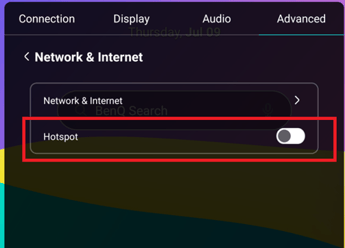
Hotspot Toggle
Added a Hotspot toggle under OSDSetting → Advanced → Network & Internet.
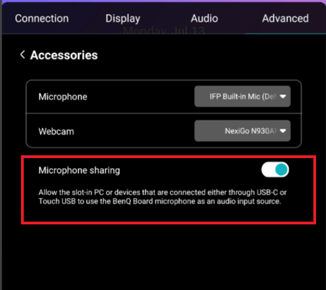
Record both system audio and microphone audio when using Floating Tools or EZWrite screen recording
Being able to record internal audio has been brought back after being removed due to Echo Cancellation. The toggle can be accessed via OSDSetting → Advanced → Accessory → Microphone Sharing (description is for other functionality).
Remote Lock
Users can now enable and disable Touch/IR/Keypad Lock from their remote via the MENU or SETTINGS button. Press and hold the MENU/SETTINGS button for 7 seconds until you see the lock message.
Support InstaShare button in Corp mode
[Enhancements]
- Optimized the OTA update mechanism to prevent update failures caused by powering off the device or switching input sources or entering power saving mode during OTA.
- Updated the Android security patch to May, 2026.
[Fixed Issues]
- Improved OPS compatibility to reduce intermittent No Signal issues.
- Fixed intermittent Instashare Button disconnection issues.
- Fixed an issue where applications (such as Google Slides) crashed or unable to display when dragged to the secondary display in Dual Display mode.
- Fixed an issue where TalkBack was unexpectedly enabled on RP04.
- Fixed an issue where the beginning of the audio from a Type-C source wouldn't play.
- Fixed an intermittent issue where the system could become stuck at the boot logo during startup.
- Fixed an issue the floating tool fails to launch via the two-finger gesture.
- Fixed an issue where only one camera was detected in EZWrite → Camera when two cameras were connected to the system.
- Fixed an issue where switching AMS accounts using an NTAG215 NFC card resulted in a blank screen.
- Fixed an issue where the panel unexpectedly restarted when initializing a cast with Logitech Rally Bar Mini and TWY31.
- Fixed an issue where EZWrite occasionally failed to launch YouTube in split-screen mode.
[Updated Apps]
- Account Settings to v2.1.35.0
- Launcher to v1.6.50.0
- IFPSidebar to v1.1.31.0
- IFPWidget to v1.3.12.0
- BenQ System Updates to v2.3.18.0
- EZWrite to v1.8.1.0
- EZTools to v1.5.1.0
- EZMath to v1.3.1.0
- AMS Files to v3.0.11.0
- BroadcastSetting to v2.5.19.0
- DMS Client to v3.4.23.0
- DMS Remote Desktop to v1.0.1.0
- BenQ App Store to v3.0.15.0
- InstaShare 2 Button to v1.1.12.0
- AI service to v1.1.12.0
[Update Instructions]
This update requires manual installation through DMS or on the BenQ Board.
Updating the firmware from DMS
⚠️ Warning
The firmware update restarts the devices automatically. Make sure to update the firmware during off hours.
- Go to https://dms.benq.com.
- Log in with your admin credentials.
- From the main menu, click Firmware. The list of available device models appears.
- Locate your BenQ Board model, and then click Update. The update summary appears.
- Review the update details, and then click Update.
Tip: You can also click Schedule to schedule the update at a later time.
Updating the firmware from the BenQ Board
⚠️ Warning
-
- The firmware update requires a system restart. Make sure to save all important data before proceeding.
- The update process may take a few minutes to complete. Ensure that there are no interruptions. Do not power off the device or disconnect from the internet to prevent permanent damage to the display.
- Open the Settings menu.
- Tap Advanced → System update.
- Tap Update system.
The system downloads and updates the firmware and then restarts automatically.