![logo-white.png]](https://knowledge.benq.com/hs-fs/hubfs/logo-white.png?width=50&height=50&name=logo-white.png)
Applicable models: RP6505, RP7505, RP8605
[New Features]
For more information on AI items Lasso Search to Camera Gestures, please see EZWrite6 Release Notes HERE.
Lasso Search
Circle anything on the screen and instantly receive curated, relevant information.
Access it via:
-
Sidebar Menu →
 →
→ 
-
Floating Tool →
 →
→ 
Ask AI
A chat-style teaching assistant that provides clear explanations, examples, and solutions to different learning needs.
Access via:
-
Sidebar Menu →
→ 
-
Floating Tool →
→ 
- Lasso Search Window →

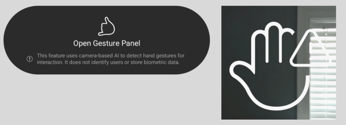
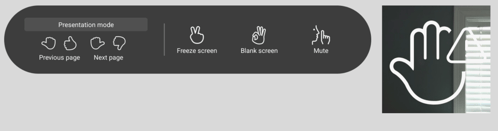
Camera Gestures
Control the BenQ Board with hand gestures from anywhere in the classroom.
Enable via:
-
Sidebar Menu →
→ 
-
Floating Tool →
→ 
On-screen instructions will appear after the feature is enabled.
Note Browser
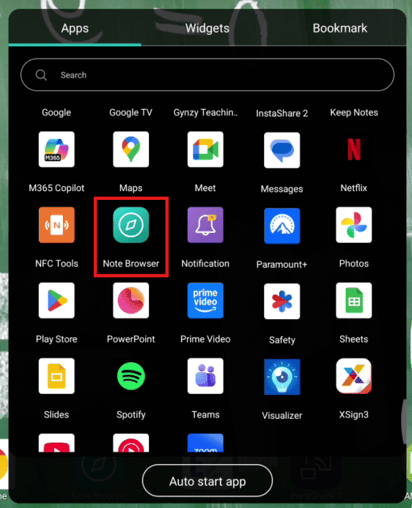
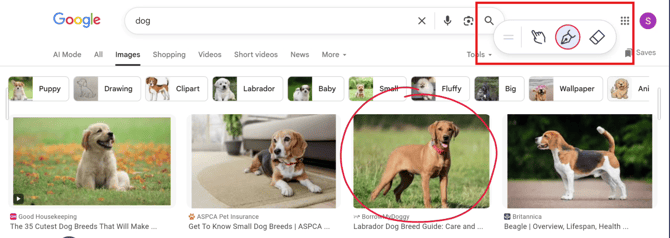
A new browser with built-in annotation features that keep notes anchored to the locations they were made on the webpage, even while scrolling. (NOTE: this is a separate browser and doesn't support Google Sync).
Access via:
Apps menu → Note Browser.
USB cloning encryption
USB cloning is now encrypted. Unencrypted USB drives can still be used to clone RP04 models running this firmware version or later.
Audio equalizer
New audio equalizer settings have been added to customize sound profiles for different types of content. Access them via BenQ OSD menu → Audio → Equalizer settings.
[Enhancements]
- Press and hold the Menu button on the remote control, or the Settings button on the front panel, to lock or unlock the IR, keypad, and touch functionality.
- InstaShare Button now works in Corp mode. To pair an InstaShare Button in Corp mode, plug it into the USB-C Out port on the side of the display and follow the prompt.
[Fixed Issues]
- Fixed an issue where the total storage space displayed was incorrect.
- Fixed an issue where selecting Dutch as the system language would trigger an error message.
- Fixed an issue where the Hotspot status in the OSD menu may be incorrect if changed in the Android settings.
- Fixed an issue where the camera would not work during video calls in VooV Meeting.
- Fixed a camera issue in VooV Meeting.
- Fixed an issue that limited the available language options during initial setup (OOBE).
- Fixed an issue where the Floating Tool would occasionally fail to launch when using a two-finger gesture.
- Fixed an issue where the InstaShare Button would get unpaired after a reboot.
- Fixed an issue where the volume could not be adjusted in Google Meet and Microsoft Teams.
- Fixed an issue where screen flickering may occur during Circle to Artify Edge image rendering, and during SummarAI audio recording.
- Fixed an issue where previous User would still be displayed after logging out of the BenQ Board.
[Updated Apps]
- EZWrite 6 1.8.1.0
- EZTools 1.5.1.0
- EZMath 1.3.1.0
- AMS Files 3.0.11.0
- DMS Client 3.4.27.0
- EasySetting 1.0.19.0
- BenQ App Store 3.0.15.0
[Update Instructions]
This update requires manual installation through DMS or on the BenQ Board.
Updating the firmware from DMS
⚠️ Warning
The firmware update restarts the devices automatically. Make sure to update the firmware during off hours.
- Go to https://dms.benq.com.
- Log in with your admin credentials.
- From the main menu, click Firmware. The list of available device models appears.
- Locate your BenQ Board model, and then click Update. The update summary appears.
- Review the update details, and then click Update.
Tip: You can also click Schedule to schedule the update at a later time.
Updating the firmware from the BenQ Board
⚠️ Warning
- The firmware update requires a system restart. Make sure to save all important data before proceeding.
- The update process may take a few minutes to complete. Ensure that there are no interruptions. Do not power off the device or disconnect from the internet to prevent permanent damage to the display.
- Open the Settings menu.
- Tap Advanced → System update.
- Tap Update. The system downloads and updates the firmware and then restarts automatically.