![logo-white.png]](https://knowledge.benq.com/hs-fs/hubfs/logo-white.png?width=50&height=50&name=logo-white.png)
X-Sign Broadcast
Index:
- X-Sign Broadcast Setup
- Creating Informacast Initiate Scenario
- Test your API Connector and Run Scenario
- Creating Scenario Clear
[Instructions]
X-Sign Broadcast Setup
- Confirm that your X-Sign Broadcast Settings app is updated to the latest version.
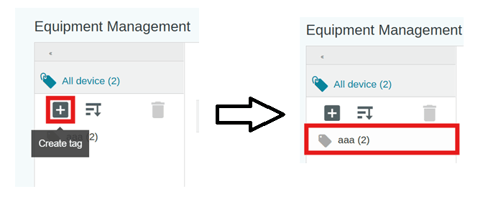
- Create a Tag Group within Broadcast that will be the desired endpoint for your Broadcast.
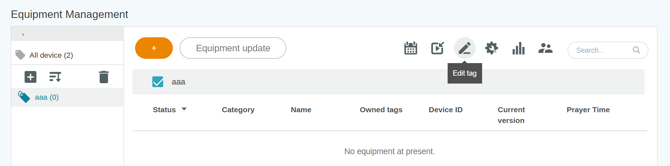
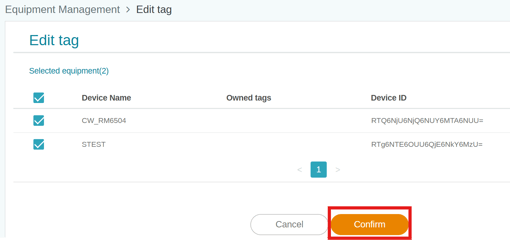
- To assign device(s)to a Tag, select the Tag Group and click Edit tag. Select all the devices that you want to assign to the group and click Confirm.
Those devices should now show up under the Tag.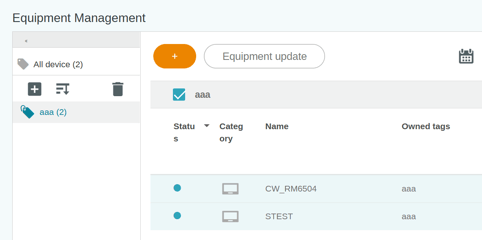
X-sign Broadcast Informacast Settings
- Navigate back to All device > Device Control
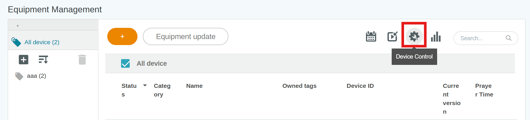
- Under Emergency Settings
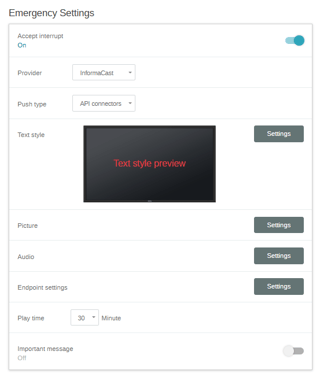
- Provider > Informacast.
- Interrupt > ON.
- Push Type > API connectors.
- Set Text Style Settings.
- Picture > Settings > Add. To ensure best quality image that fills the display, use a 3840x2160 resolution image file. Once uploaded, copy
 the MD5 value to a text file as you'll need this later on. Click OK when done.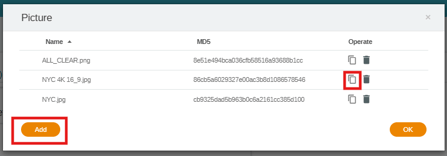
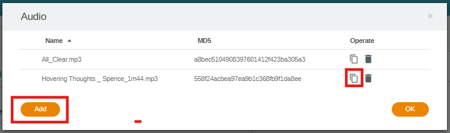
- Repeat the process for Audio as above.
- Endpoint Settings > Add > Select required Tag Group. Copy the Endpoint URL to the same text file as the others as you'll need it later on as well.
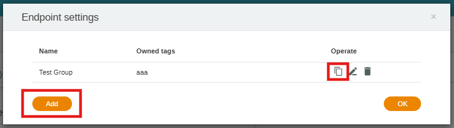
- Adjust Play Time and Toggle Important Message (user cannot close broadcast at the board side) as needed.
- Scroll down to the bottom and click Apply.

Creating Informacast Initiate Scenario
- Login to https://admin.icmobile.singlewire.com/.
- Navigate to Notifications > Command Center > Scenarios.
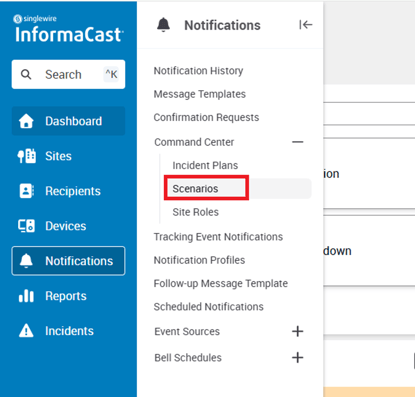
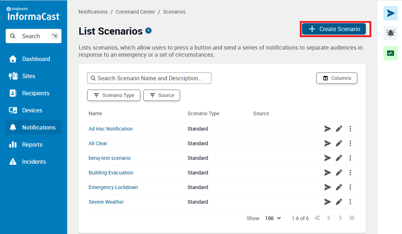
- Create a Scenario.
- Scenario Type > Standard > Continue.
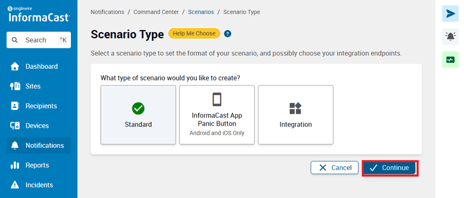
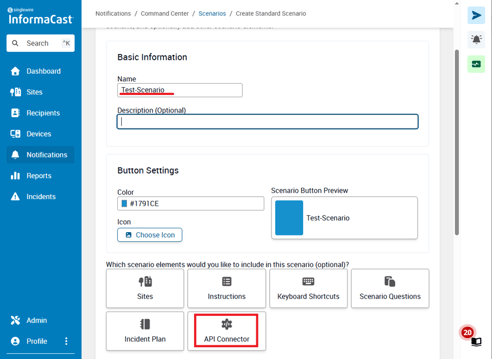
- Name your Scenario and include an API Connector.
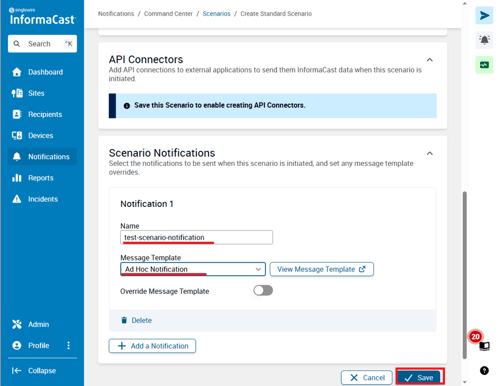
- Name your Notification and set Message Template > Ad Hoc Notification. Then click Save.
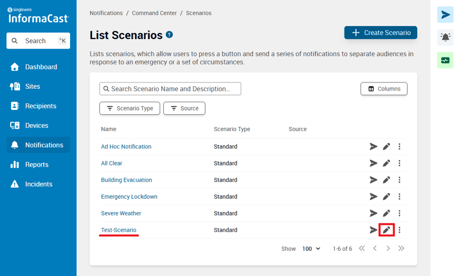
- Edit the Scenario that was just created and Add an API Connector.
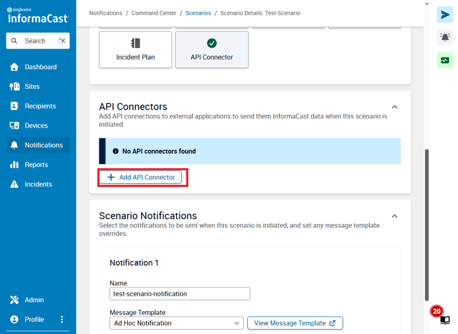
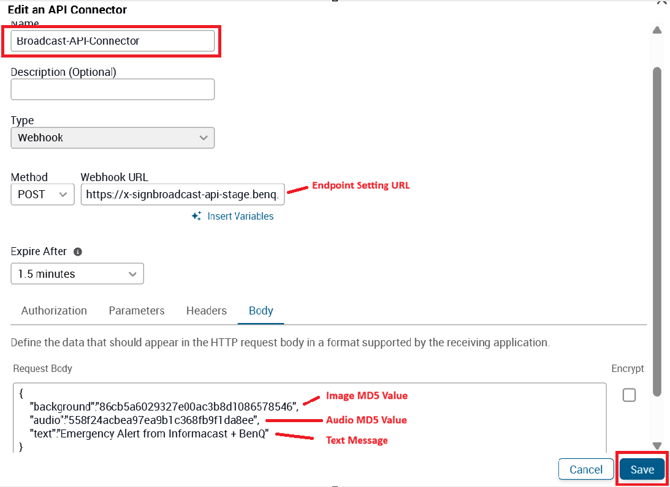
- Now to fill out the API Connector, you'll need to reference the MD5 values you copied from Broadcast Device Settings.
- Name your connector.
- Copy your Endpoint Setting URL to the Webhook URL textbox.
- In the Body, provide the required Image MD5 Value, Audio MD5 Value, Text to Display.
{
"background":"45a56aaf1fb61ca520b480e314ca297e",
"audio":"558f24acbea97ea9b1c368fb9f1da8ee",
"text":"Emergency Alert from Informacast + BenQ"
}
- Click Save.
Test API Connector and Run Scenario
-
To test, click
 next to your API Connector.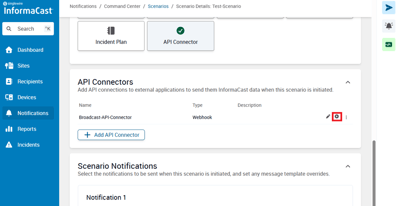
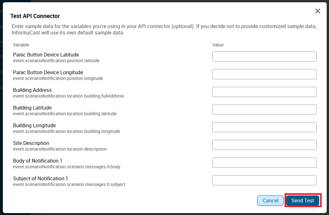
-
Click Send Test.
- Confirm that Result = Success.
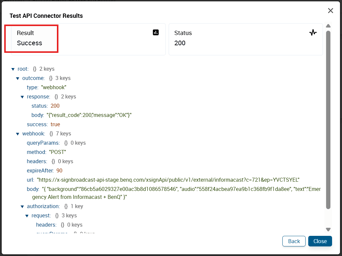
-
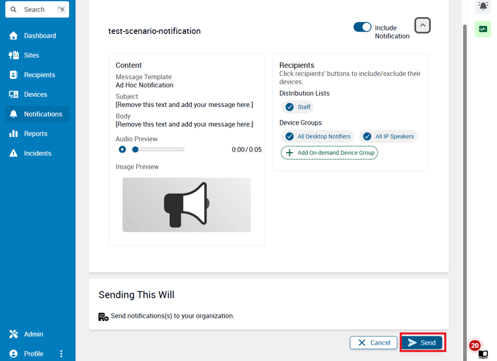
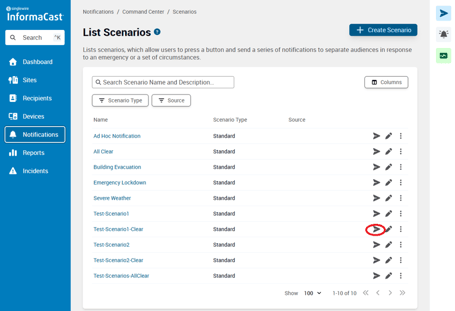
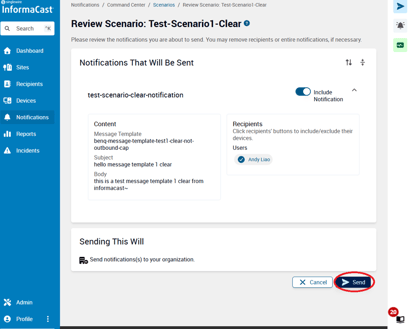
- Return back to the Scenarios page and run your Scenario. Click the
 icon next to your Scenario to open the Send Page and then
  to Run it.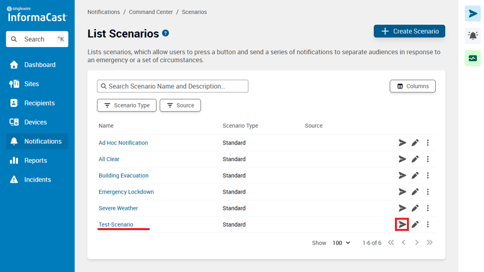
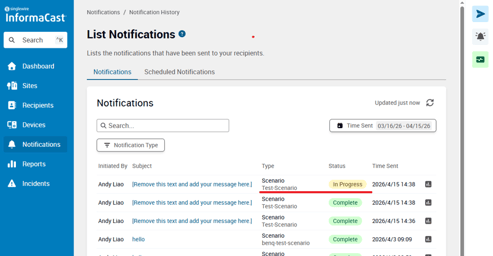
- The Scenario can be tracked in the Notification History.
-
Confirm that the Tagged devices in X-Sign Broadcast received your Informacast Broadcast correctly.
Creating Scenario Clear
Once confirmed that the Scenario broadcast correctly to the Endpoints, a Clear Scenario should also be created for that Scenario. This will stop the broadcast and clear the displays.
-
Repeat the steps above to Create a Scenario, but name this one differently to differentiate it from the broadcasting Scenario. (e.g. Test-Scenario-Clear).
-
In the body of the API Connector, you'll send the parameters for "allClear":"false" instead of the content settings (background/audio/text). Make sure to use the same Endpoint URL as your scenario for the Webhook URL.
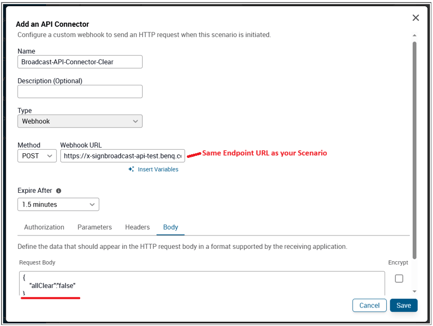
- Repeat steps to test API Connector and then test that your Scenario is cleared when sending this created Clear Scenario.
If you have any questions or issues with the setup, please reach out to your BenQ representative/contact and they'll be able to assist.