![logo-white.png]](https://knowledge.benq.com/hs-fs/hubfs/logo-white.png?height=50&name=logo-white.png)
For Instashare 2 versions 1.7.0.0 and up.
- Mobile devices and tablets are NOT supported.
- This will only allow you to cast and will NOT have touchback.
[How to Video]
[Instructions]
- Ensure that you're BenQ Board's Instashare 2 version is at least 1.7.0.0. If it's not, refer to the update instructions HERE at the bottom of the page.
- Make sure that you have Webcasting enabled on your BenQ Board. This is DISABLED by default.
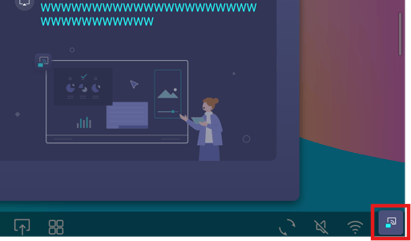
- Open up the Instashare 2 Host menu (bottom right of your screen).
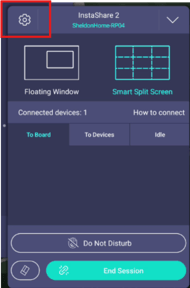
- Go into the Settings in the host menu.
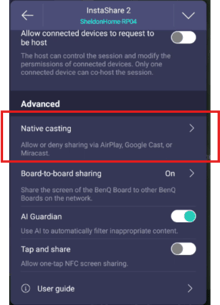
- Under Advanced, find Native Casting > Enable Webcasting.
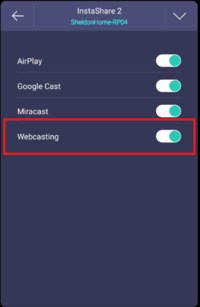
- Open up the Instashare 2 Host menu (bottom right of your screen).
- Open up Instashare 2 on your BenQ Board and tap Share without app
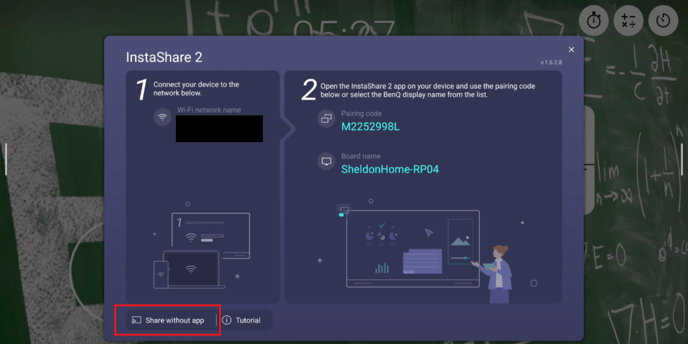
- Follow the instructions for Webcasting.
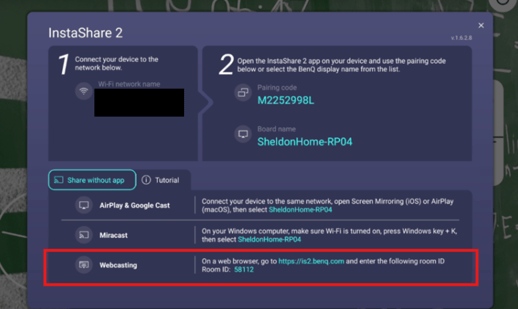
- On your casting device, navigate to the website shown https://is2.benq.com and enter your Device Name (how you want to be displayed), the RoomID, then click Connect.
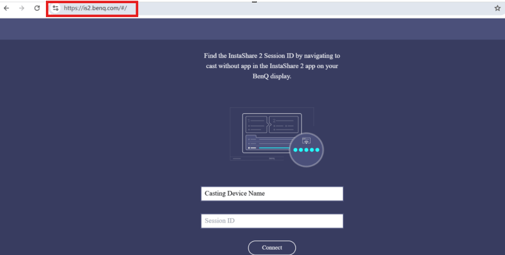
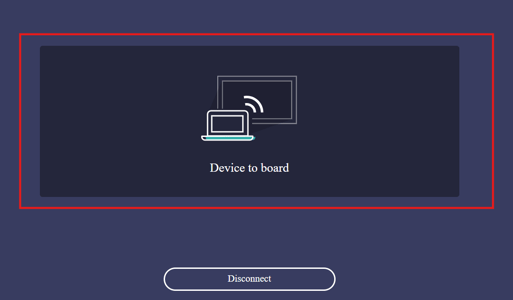
- Click Device to Board.
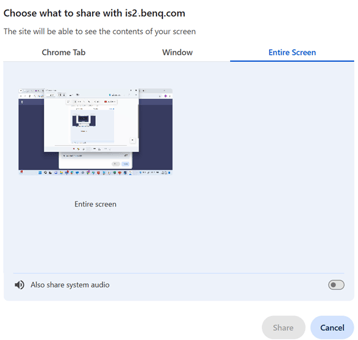
- Choose what to share (toggle System Audio share if you require) and click Share.